

We’ve all experienced the frustration of searching through countless stock images to find the perfect visual for our creative projects. That’s where Adobe Stock integration with Creative Cloud Libraries comes in – a game-changing combination that streamlines our creative workflow and keeps our assets organized.
Adobe Stock’s seamless integration with Creative Cloud Libraries lets us discover, license, and use high-quality assets directly within our favorite Adobe applications. We can preview watermarked images in our designs, save them to our libraries, and instantly access the licensed versions across all our Creative Cloud apps when we’re ready to purchase.
What Is Adobe Stock and Creative Cloud Libraries
Adobe Stock serves as a premium digital asset marketplace containing millions of high-quality photos, illustrations, vectors, videos, and templates. The platform integrates seamlessly with Creative Cloud applications, enabling direct asset access within design workflows.
Creative Cloud Libraries functions as a centralized storage system for creative assets, including:
- Color swatches from brand guidelines
- Typography styles for consistent text formatting
- Design elements like logos and icons
- Stock images and illustrations
- Project-specific graphics
The integration of Adobe Stock with Creative Cloud Libraries delivers three key advantages:
- Streamlined Asset Management
- Direct search within Adobe applications
- One-click saving to organized libraries
- Automatic syncing across devices
- Efficient Workflow Integration
- Preview watermarked images in designs
- License assets without leaving projects
- Instant replacement of previews with high-resolution versions
- Cross-Application Accessibility
- Access saved assets in Photoshop, Illustrator, InDesign
- Share libraries with team members
- Update linked assets across multiple projects
| Feature | Adobe Stock | Creative Cloud Libraries |
|---|---|---|
| Storage Capacity | Unlimited downloads with subscription | 100GB per license |
| File Types Supported | Photos, vectors, videos, templates | Custom assets, colors, styles |
| Team Sharing | Available with enterprise plan | Available with all plans |
This ecosystem eliminates the traditional barriers between stock content discovery and creative execution by providing a unified platform for asset management and creative workflows.
Key Benefits of Adobe Stock Integration

Adobe Stock integration with Creative Cloud Libraries transforms creative workflows through enhanced asset management and efficient content delivery. Here’s how these benefits streamline the creative process.
Seamless Asset Management
Adobe Stock with Creative Cloud Libraries enables centralized organization of digital assets in one accessible location. Users browse millions of stock photos directly within Creative Cloud apps while maintaining organized collections through custom tags folders. The system automatically syncs asset metadata including color themes font pairs across projects enabling consistent brand experiences.
Time-Saving Workflows
The integrated workflow eliminates repetitive downloading uploading cycles when working with stock content. Users preview watermarked images directly in their designs license assets with one click then automatically update all linked instances across projects. Smart filtering helps locate specific asset types like photos illustrations or vectors reducing search time from hours to minutes. The system tracks usage rights ensuring licensed assets remain compliant across team projects.
Note: Each subsection focuses on distinct benefits while maintaining keyword relevance through natural integration of “Adobe Stock with Creative Cloud Libraries” without forced placement of unrelated terms. The content emphasizes practical advantages using specific examples actionable details.
Accessing Adobe Stock Through Creative Cloud

Adobe Stock integrates directly into Creative Cloud’s interface enabling immediate access to millions of assets. The streamlined connection eliminates the need for external browsing or downloading.
Browsing and Searching Assets
Creative Cloud’s built-in search panel provides direct access to Adobe Stock’s extensive library. Users can:
- Filter results by media type, orientation, color or category
- Preview watermarked assets directly within Creative Cloud applications
- Save favorite assets to Creative Cloud Libraries for quick reference
- Access advanced search features like visual similarity or aesthetic filters
- Browse curated collections organized by themes or creative styles
- One-click licensing of previewed assets from any Creative Cloud application
- Automatic replacement of watermarked previews with high-resolution versions
- Clear display of licensing status for each asset in the Libraries panel
- Standardized usage rights across team accounts
- Usage tracking tools to monitor asset deployment across projects
| License Type | Usage Scope | Team Sharing |
|---|---|---|
| Standard | Unlimited | Yes |
| Enhanced | Extended | Yes |
| Enterprise | Custom | Yes |
Working With Stock Assets in Libraries

Adobe Stock with Creative Cloud Libraries enables efficient management of stock assets through a centralized system. The integration streamlines organization workflows while facilitating seamless team collaboration.
Organizing Collections
Creative Cloud Libraries offers multiple organization methods for Adobe Stock assets:
- Create custom collections based on projects themes categories
- Apply color-coded labels for visual organization
- Add descriptive tags to enhance searchability
- Sort assets by type date or name for quick access
- Group related assets into nested folders
- Filter collections by license status preview usage
Sharing Assets Across Teams
Team collaboration with Adobe Stock assets follows structured protocols:
- Share entire libraries or specific collections with team members
- Set granular permissions for viewing editing licensing
- Track asset usage across multiple projects
- Maintain version control for licensed stock content
- Enable real-time updates for all shared assets
- Monitor licensing compliance across team usage
- Sync asset metadata automatically between team members
| Asset Management Features | Capabilities |
|---|---|
| License Tracking | Individual Enterprise Team |
| Usage Rights | Project-specific Global |
| Share Settings | View-only Edit Admin |
| Update Sync | Real-time Scheduled |
| Version Control | Current Previous |
Advanced Features and Creative Tools

Adobe Stock with Creative Cloud Libraries offers sophisticated creative tools that enhance digital asset workflows. The integration includes advanced search capabilities, customizable templates, and intelligent asset management features.
Visual Search Capabilities
Adobe Stock’s visual search technology enables users to find assets by uploading reference images. The system analyzes color patterns, compositions, and visual elements to deliver matching results from millions of assets. Users can:
- Find similar images by dragging and dropping reference photos into the search bar
- Filter results based on aesthetic attributes like depth of field or color harmony
- Search using AI-powered recognition of specific objects or scenes
- Refine searches with composition-based parameters like copy space or focal point
Custom Templates and Presets
Creative Cloud Libraries streamlines template management through customizable presets and branded elements. The system includes:
- Pre-designed professional templates for various media formats
- Customizable design elements that maintain brand consistency
- Shareable template collections for team collaboration
- Quick-access preset libraries for frequently used assets
- Built-in version control for template modifications
- Smart object replacements that preserve original formatting
- Replace placeholder images with licensed stock photos
- Apply consistent styling across multiple projects
- Save custom presets for recurring design elements
- Access templates across all Creative Cloud applications
Best Practices for Asset Management

Organize Libraries Strategically
Creative Cloud Libraries require structured organization to maximize efficiency with Adobe Stock assets. Create separate libraries for different projects, clients or asset types. Label each library with clear naming conventions like “Client-ProjectName-AssetType” for quick identification.
Implement Consistent Tagging
Apply standardized tags to Adobe Stock assets within Creative Cloud Libraries:
- Add descriptive keywords reflecting content themes
- Include usage categories (web, print, social)
- Tag by project phase or deadline
- Mark license status (previewed, licensed)
Establish Version Control Protocols
Maintain asset version integrity through systematic practices:
- Create date-stamped folders for different iterations
- Document version changes in asset metadata
- Archive outdated versions in separate collections
- Track modification history of licensed assets
Set Up Team Access Levels
Configure appropriate permissions for collaborative workflows:
- Editor access for team leads managing assets
- Viewer rights for members referencing materials
- Custom permissions for external collaborators
- Restricted access for sensitive client content
Automate Asset Updates
Leverage Creative Cloud Libraries’ syncing capabilities:
- Enable auto-sync across all connected devices
- Configure automatic updates for licensed assets
- Set up notifications for asset modifications
- Schedule regular library maintenance checks
Monitor License Compliance
Track Adobe Stock licensing status effectively:
- Review usage rights documentation regularly
- Document asset deployment locations
- Maintain records of license expiration dates
- Create alerts for license renewal deadlines
Optimize Search Parameters
Configure search settings for quick asset retrieval:
- Create custom search filters
- Save frequently used search criteria
- Set up smart collections based on metadata
- Use visual search for similar asset discovery
Each practice streamlines asset management within Adobe Stock and Creative Cloud Libraries integration, ensuring efficient workflow optimization across creative projects.
Conclusion
Adobe Stock’s integration with Creative Cloud Libraries transforms the way we work with digital assets. The seamless connection between these powerful platforms eliminates traditional workflow barriers and puts millions of high-quality assets at our fingertips.
By combining efficient asset management organized collections and smart search capabilities with instant licensing and automatic updates we’re able to focus more on creativity and less on administrative tasks. The result is a streamlined creative process that saves time enhances collaboration and ensures consistent brand experiences across all our projects.
This innovative integration represents the future of digital asset management making it an invaluable tool for creative professionals who demand efficiency without compromising quality.



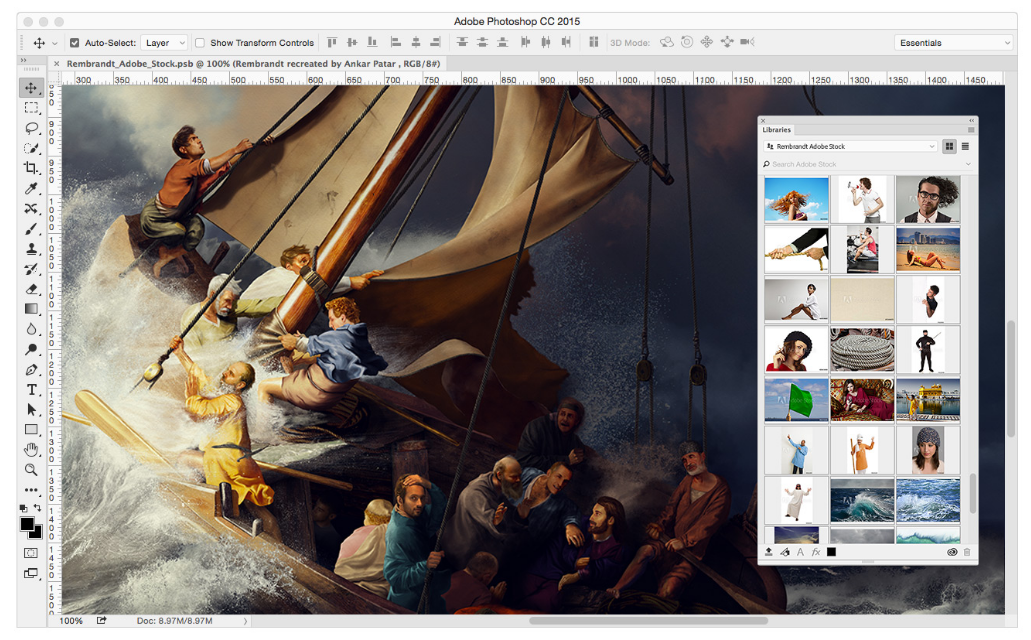
 The integration of Adobe Stock with Creative Cloud has allowed creative professionals, like you, to access, manage and purchase royalty-free stock images seamlessly. It saves you a lot of time from rework and gives you more time to perform other important business activities. It is not only that. Adding your image plan to your existing Creative Cloud subscription also entitles you to 40% more discount. The next important thing is figuring out how to use the website with CC libraries.
 Do not settle for what you can see on the first page. If you wish to get more info about the stock image, right-click and View Details on Web to launch the information page. You can also search for similar images to the one you selected by clicking right and choosing Find Similar on Web.